BricsCAD V26 sharpens the 2D drafting experience. From the moment you launch it, you'll notice a cleaner interface. And under the hood, there are 13 improvements built to cut clicks and help you deliver projects faster. Here's a tour of what's new for general 2D design in Lite and Pro.
Streamlined launcher and workspaces
BricsCAD V26 has a new launcher and a simplified interface: fewer workspaces, consolidated into a single ribbon, without giving up flexibility. Pick the workspace that matches how you work, and the ribbon updates automatically to suit.
- 2D Drafting: the classic ribbon from V25
- 2D Drafting Modern: the updated modern ribbon from V25
- Modeling: optimized for 3D design workflows
- Civil Survey: tailored to civil survey tools
- Toolbars Classic: a toolbar-focused workspace with no ribbon
Are you drafting in 2D? Building complex 3D models? Working on civil survey projects? There's a BricsCAD workspace built for the job.

A redesigned LookFrom widget
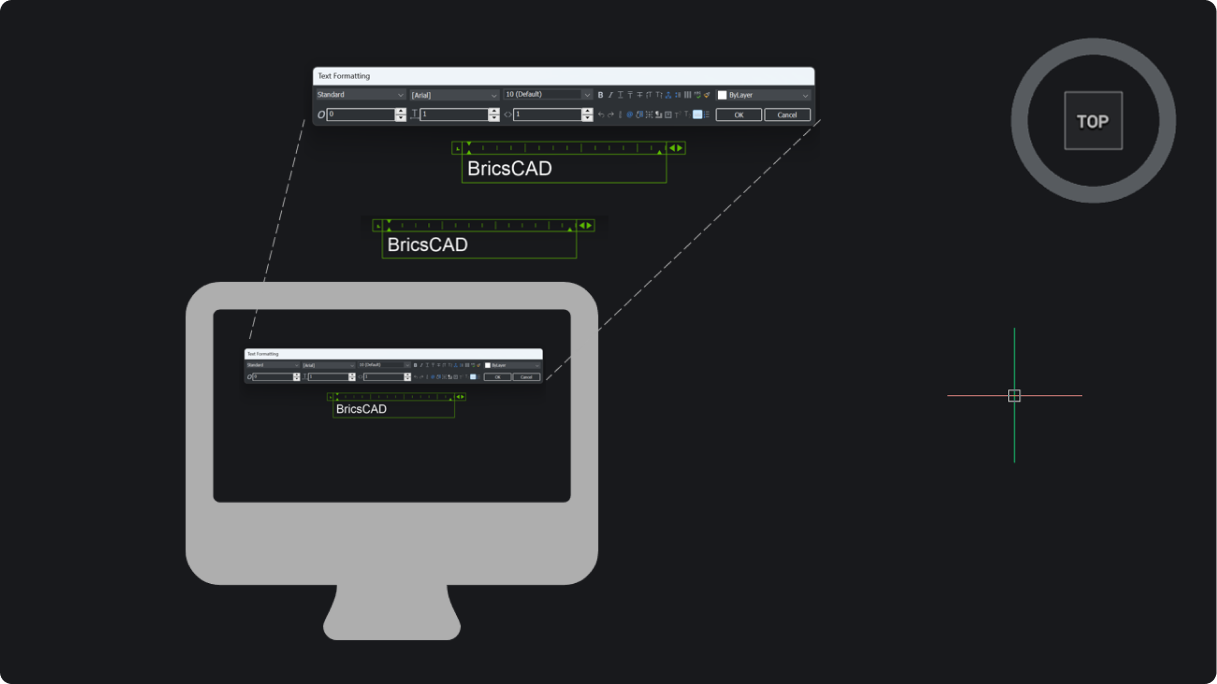
The LookFrom widget has been redesigned on Windows and macOS with a modern look, clearer feedback, and dynamic repositioning. Hover over it and arrows appear for the standard views. To set your own view, click and drag to rotate freely, or click a face or corner of the cube to snap to a preset view.
It works in paper space too: activate a viewport and the widget appears, behaving exactly as it does in model space. Prefer the previous widget? Set the "Use new LookFrom" system variable to 0 and restart BricsCAD.

A Qt-based status bar by default
The Qt-based status bar introduced in V25 is now the default, giving you a more familiar interface out of the box. To switch back to the previous status bar, set the "Use new status bar" system variable to 0 and restart.

Blockify, now built into Create Block
Ever wondered why Blockify wasn't part of the Create Block tool? So did we. And now it is.
When you define a block, enable the new Background Scan option and BricsCAD checks for matching block definitions as you go. If it finds one, you can reuse the existing definition instead of creating a duplicate. Run it on a drawing full of repeated geometry. BricsCAD surfaces the duplicates, then opens the familiar Blockify panel so you can zoom in on matches and convert one, some, none, or all of them into blocks.

Real-time command previews for Trim and Extend
A new command-preview system variable adds live previews to Trim and Extend. It's off by default, so simply go to the Settings dialog and check Command Preview to switch it on.
With Trim active, hover over an entity and the segment to be removed highlights in gray, so you can see exactly what's going to be removed before you click. The same works for Extend: hold Shift to preview how the entity will extend. Seeing the result in real time before you commit saves clicks and second-guessing.

Grip-based context editing
Grips now surface context menus based on the grip and entity type, putting the most relevant actions right where you need them without starting a separate command. Currently available for specific entities on Windows.

Reverse: flip geometry direction in one command
The Reverse command flips the order of vertices in a single step. Run it on a line whose start point sits at the bottom and the start point jumps to the top. Any direction-dependent text flips along with it. Reverse works on lines, polylines, splines, and helixes, giving you a fast, accurate way to change the direction of your geometry.

Editable SHX text from PDF imports
Import a PDF and BricsCAD now converts SHX text geometry into editable text automatically (PDFSHXTEXT). No more retyping imported annotations by hand, and fewer transcription errors along the way.

Faster, smarter Quick Select
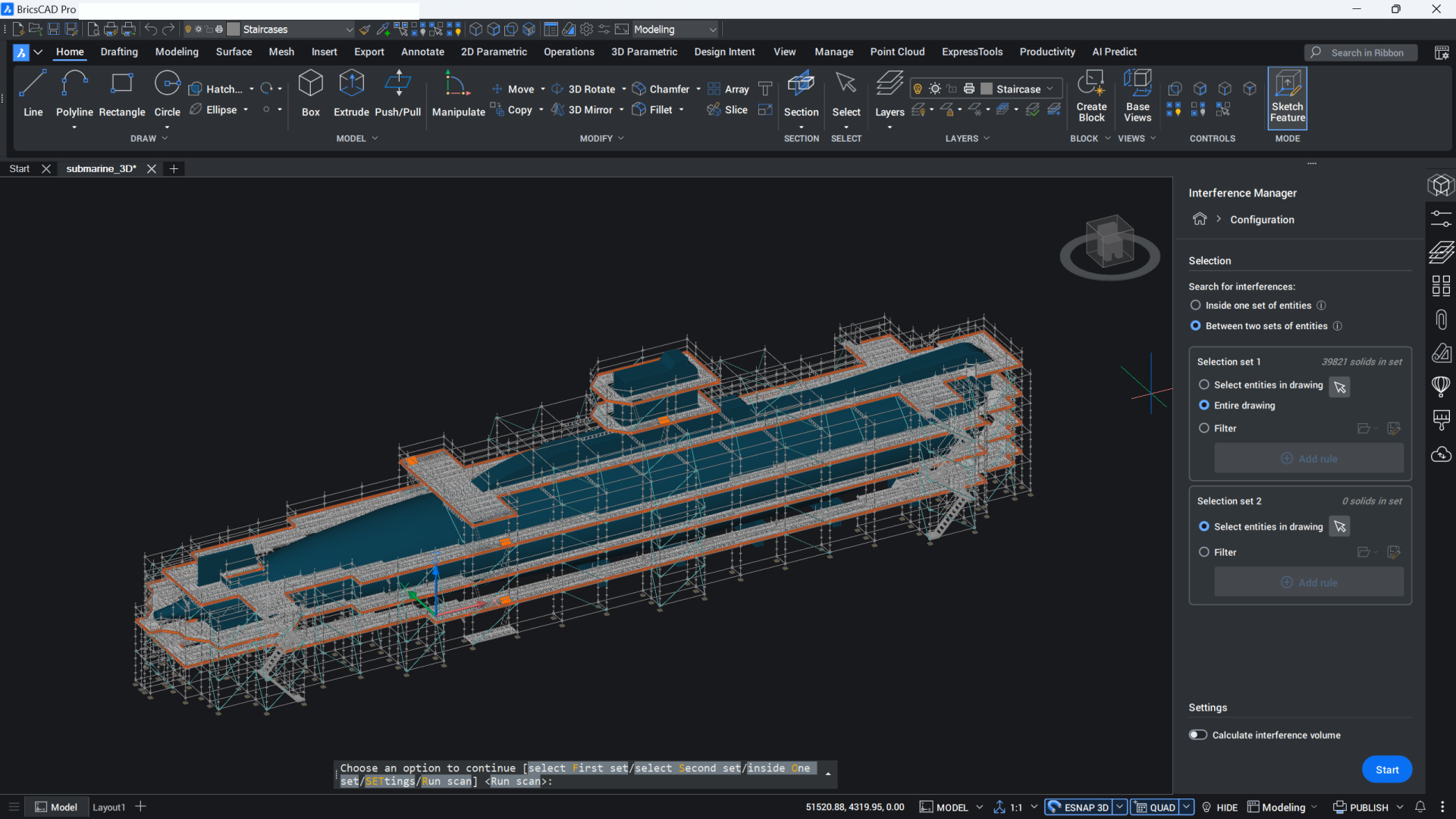
Quick Select is now more efficient in two ways. First, you can make multiple selections without leaving the dialog, so moving something like scaffolding diagonals from several layers onto a single layer takes one pass instead of many.
Second, filtering is smarter: wildcards now work in plain-text properties. Want every block whose name starts with "BAS"? Choose the wildcard match operator, enter your criteria, and isolate exactly those blocks instantly.
Selection goes further still with property-based selection in the Filter panel: run property-based queries to select, deselect, add, or remove entities—from the panel or the command line—and save filters to reuse on your next drawing.

Dynamic on-screen measurement with MeasureGeom
MeasureGeom now displays distances and angles dynamically, right on screen. Move the cursor over entities in plan view and it switches to full-screen mode, so measurements are easy to read—lengths and angles at each corner of a polygon, or the radius of a circle.
It measures single or multiple entities: report the area of one polygon at the command line, or the combined area of a circle and a polygon together. It handles volumes as well. Find the volume of a 3D box, or specify a height for a 2D entity and let BricsCAD calculate. Need mass properties? Display them at the command line or write them out to a text file of your choice.

QDIM Advanced mode: dimension a whole drawing in one run
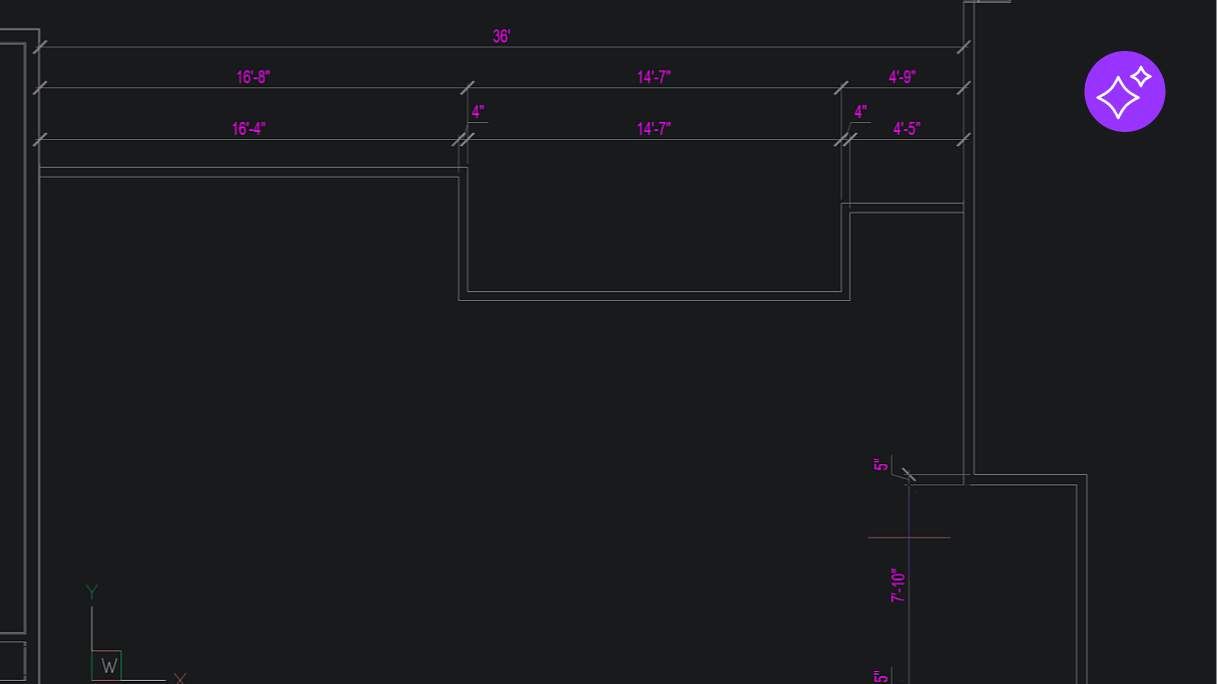
QDIM's new Advanced mode adds multi-directional chained dimensions with level-of-detail control and a live preview, so you can place every relevant dimension line in a single command run instead of one at a time. It's unique to BricsCAD, and a real time-saver on dense 2D drawings.
Sorted data extraction
Choose the sort order of fields in the Data Extraction Wizard (DATAEXTRACTION). Output comes out organized and readable, sorted by field priority, with less manual cleanup afterward.

Drawing health notifications
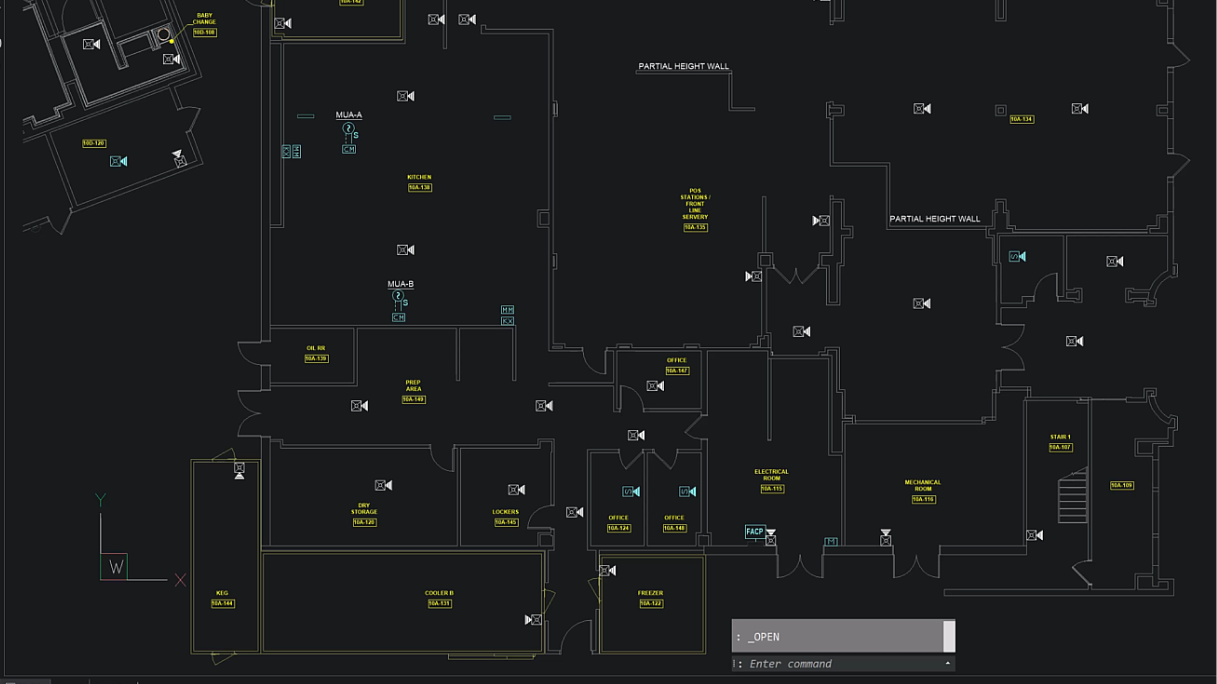
The new Health Advisor runs in the background and flags potential improvements to your drawing, recommending fixes so problems surface before they cost you time downstream.
Draft faster with BricsCAD V26
BricsCAD V26 accomplishes 2D work with full confidence and fewer clicks: Blockify built right into block creation, real-time Trim and Extend previews, dynamic measurement, and the flexibility to set up your workspace exactly how you like it. Plus, one-run dimensioning, editable PDF text, background drawing-health checks, and property-based selection. Together, they add up to projects delivered faster and more efficiently.
Ready to draft faster? Download Octave BricsCAD V26 and put these tools to work.